> ## Documentation Index
> Fetch the complete documentation index at: https://asapp-04-04-getting-started-ga.mintlify.site/llms.txt
> Use this file to discover all available pages before exploring further.
# Getting Started
To get started with GenerativeAgent, let's create a GenerativeAgent that can help a customer from your knowledge base. By the end, you'll have a working GenerativeAgent that can answer customer questions using your own content.
This is a basic example to get you started quickly. As you develop more sophisticated GenerativeAgent solutions, you'll want to explore [additional use cases](/generativeagent/build/adding-a-use-case) and consider the [comprehensive design](/generativeagent/build-overview) of your implementation.
## Before you begin
Before you begin, make sure you have:
* Followed the [Set up your account](/getting-started/setup) guide to get access to the ASAPP AI Console.
* A customer-facing knowledge base URL (such as your help center or support documentation)
## Step 1: Connect Your Knowledge Base
The first step is to import your knowledge base content so GenerativeAgent can use it to answer customer questions.
We will use the Import from URL to import your knowledge base content but you have other options on how to [connect your knowledge base](/generativeagent/configuring/connecting-your-knowledge-base).
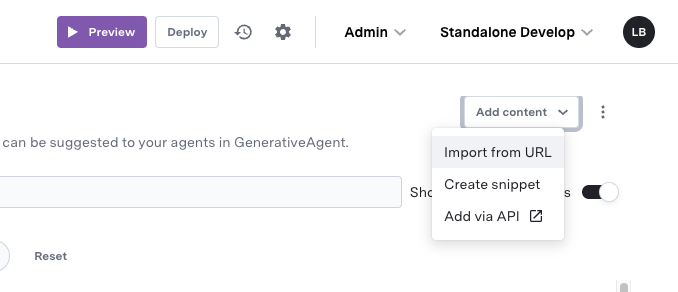 Optionally, you can import specific sections of your site by specifying [allowed URL Prefix or Excluded URLs](/generativeagent/configuring/connecting-your-knowledge-base#step-1%3A-importing-your-knowledge-base).
Your content will be imported and placed in a **Pending Review** state.
## Step 2: Review and Publish Your Content
After crawling your knowledge base, we will create a list of articles that could be added to the GenerativeAgent knowledge base.
You need to review and publish the articles:
At the top of the Knowledge Base page, look for the notification indicating articles need review.
Optionally, you can import specific sections of your site by specifying [allowed URL Prefix or Excluded URLs](/generativeagent/configuring/connecting-your-knowledge-base#step-1%3A-importing-your-knowledge-base).
Your content will be imported and placed in a **Pending Review** state.
## Step 2: Review and Publish Your Content
After crawling your knowledge base, we will create a list of articles that could be added to the GenerativeAgent knowledge base.
You need to review and publish the articles:
At the top of the Knowledge Base page, look for the notification indicating articles need review.
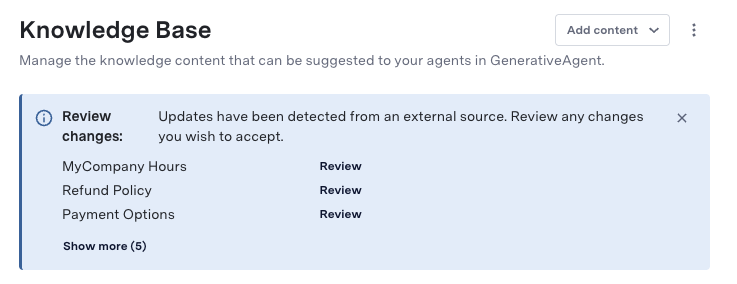 For each article:
* Choose between the cleaned-up or raw version
* Add relevant query examples that customers might ask (e.g., "What is your return policy?")
* Click **Publish** when you're satisfied with the content
## Step 3: Create a Basic Task
Now that your knowledge base is set up, let's create a simple task for GenerativeAgent to handle customer inquiries.
A task is a set of instructions that tells GenerativeAgent what to do. We go into more detail about tasks and functions in the [Learn More About Tasks and Functions](/generativeagent/configuring) guide.
Here we provide sample names and instructions, but you are in full control of GenerativeAgent's behavior and can customize them to fit your needs.
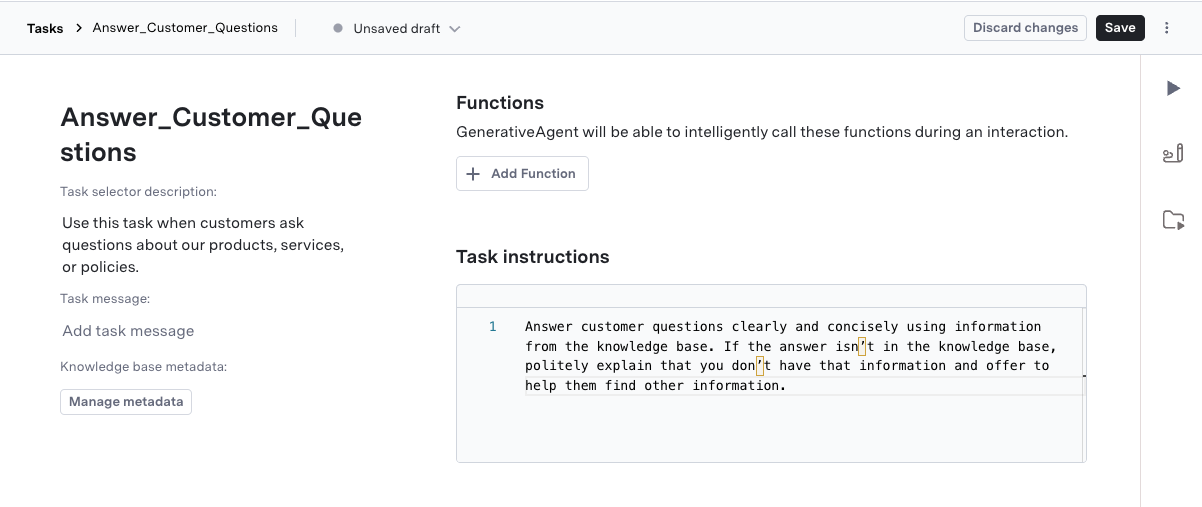
Fill in the following fields:
* **Task name**: "Answer\_Customer\_Questions"
* **Task selector description**: "Use this task when customers ask questions about our products, services, or policies."
* **General Instructions**: "Answer customer questions clearly and concisely using information from the knowledge base. If the answer isn't in the knowledge base, politely explain that you don't have that information and offer to help them find other information."
For each article:
* Choose between the cleaned-up or raw version
* Add relevant query examples that customers might ask (e.g., "What is your return policy?")
* Click **Publish** when you're satisfied with the content
## Step 3: Create a Basic Task
Now that your knowledge base is set up, let's create a simple task for GenerativeAgent to handle customer inquiries.
A task is a set of instructions that tells GenerativeAgent what to do. We go into more detail about tasks and functions in the [Learn More About Tasks and Functions](/generativeagent/configuring) guide.
Here we provide sample names and instructions, but you are in full control of GenerativeAgent's behavior and can customize them to fit your needs.
Fill in the following fields:
* **Task name**: "Answer\_Customer\_Questions"
* **Task selector description**: "Use this task when customers ask questions about our products, services, or policies."
* **General Instructions**: "Answer customer questions clearly and concisely using information from the knowledge base. If the answer isn't in the knowledge base, politely explain that you don't have that information and offer to help them find other information."
 ## Step 4: Try It Out in the Previewer
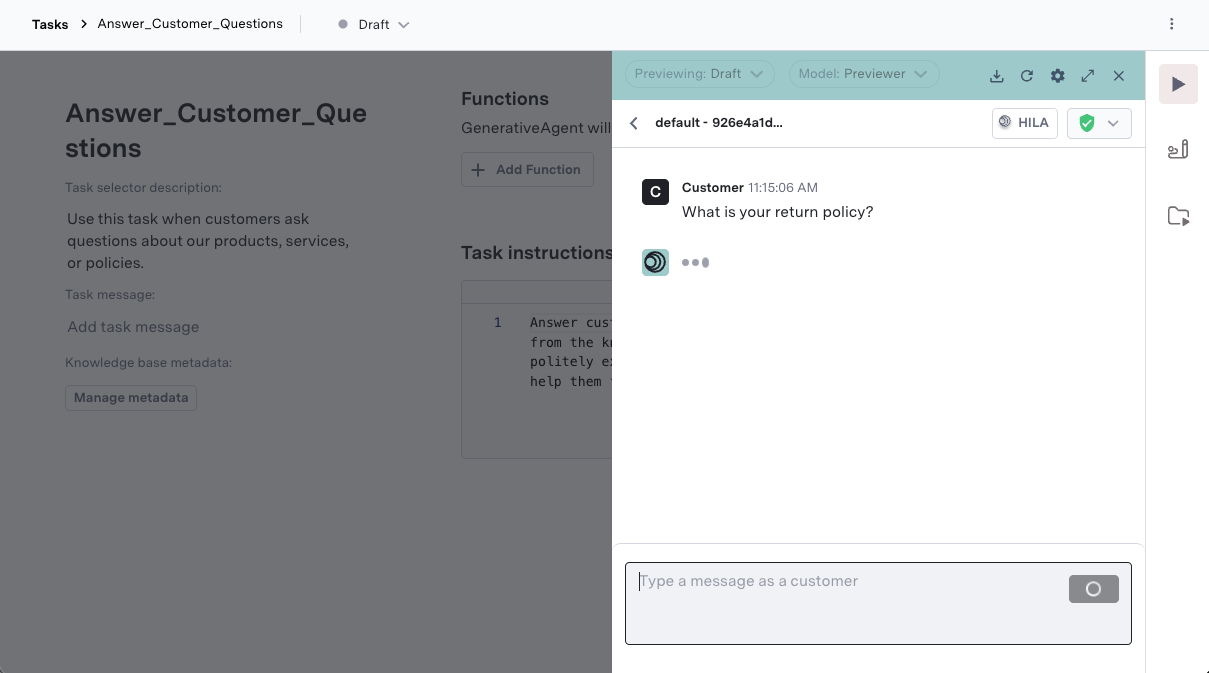
Now let's test your GenerativeAgent with the [Previewer](/generativeagent/configuring/previewer):
1. Navigate to **GenerativeAgent > Previewer**
2. Select **Draft** environment from the dropdown
3. Type a test question related to your knowledge base content (e.g., "What is your return policy?")
4. Send the message and observe GenerativeAgent's response
5. Use the Turn Inspector panel on the right to see which knowledge base articles were used and how GenerativeAgent processed the request
## Step 4: Try It Out in the Previewer
Now let's test your GenerativeAgent with the [Previewer](/generativeagent/configuring/previewer):
1. Navigate to **GenerativeAgent > Previewer**
2. Select **Draft** environment from the dropdown
3. Type a test question related to your knowledge base content (e.g., "What is your return policy?")
4. Send the message and observe GenerativeAgent's response
5. Use the Turn Inspector panel on the right to see which knowledge base articles were used and how GenerativeAgent processed the request
 ## Safety
GenerativeAgent is has been developed with a safety-first approach.
ASAPP ensures GenerativeAgent's accuracy and quality with rigorous testing and continuous updates, preventing hallucinations through advanced validation. Our team has incorporated Safety Layers that provide benefits such as reliability and response trust.
Our safety standards include:
* Safety Layers
* Hallucination Control
* Data Redaction
* IP Blocking
* Customer Info and Sensitive Data Protection
You can learn more about this in [Safety and Troubleshooting](/generativeagent/configuring/safety-and-troubleshooting).
## What's Next
Congratulations on setting up a basic GenerativeAgent to answer customer questions using your knowledge base!
Now that you have a working GenerativeAgent, here are the recommended next steps to understand GenerativeAgent more holistically and build a complete solution:
Get a comprehensive understanding of how GenerativeAgent works and the complete build process.
Learn how to design and implement specific use cases for your contact center needs.
Test and refine your GenerativeAgent before deploying to production.
Connect your CCaaS and backend systems to create a complete GenerativeAgent solution.
## Safety
GenerativeAgent is has been developed with a safety-first approach.
ASAPP ensures GenerativeAgent's accuracy and quality with rigorous testing and continuous updates, preventing hallucinations through advanced validation. Our team has incorporated Safety Layers that provide benefits such as reliability and response trust.
Our safety standards include:
* Safety Layers
* Hallucination Control
* Data Redaction
* IP Blocking
* Customer Info and Sensitive Data Protection
You can learn more about this in [Safety and Troubleshooting](/generativeagent/configuring/safety-and-troubleshooting).
## What's Next
Congratulations on setting up a basic GenerativeAgent to answer customer questions using your knowledge base!
Now that you have a working GenerativeAgent, here are the recommended next steps to understand GenerativeAgent more holistically and build a complete solution:
Get a comprehensive understanding of how GenerativeAgent works and the complete build process.
Learn how to design and implement specific use cases for your contact center needs.
Test and refine your GenerativeAgent before deploying to production.
Connect your CCaaS and backend systems to create a complete GenerativeAgent solution.