> ## Documentation Index
> Fetch the complete documentation index at: https://asapp-04-04-getting-started-ga.mintlify.site/llms.txt
> Use this file to discover all available pages before exploring further.
# ASAPP Messaging Updates - Insights Manager
> New updates and improvements for ASAPP Messaging - Insights Manager
## Overflow Queue Routing
Administrators can redirect the traffic from one queue to another queue based on two different rules, namely: business hours and agent availability.
**Business Hours Rule**
The chat traffic from queue A is redirected to queue B when it is later than the open operating business hours for queue B.
**Agent Availability Rule**
The chat traffic from queue A is redirected to queue B when there is no available agent serving queue A.
Queue Routing improves:
* Reduce estimated wait time for end-customers
* Support closed queues when it is a legal requirement
Admins can choose to redirect traffic from Queue A to Queue B based on a rule configuration which is set by an ASAPP representative.
## Bulk Close and Transfer Chats
ASAPP introduces bulk chat management features in Live Insights to help alleviate queues experiencing unusual activity or high traffic.
These features include:
* Bulk Transfer: Transfer all chats from one queue to another to redistribute traffic
* Bulk Close: End all chats in a queue to quickly address unusual activity
The features are accessible through dropdown menus and modal interfaces in Live Insights.
## How it Works
 ### Bulk Chat Transfer
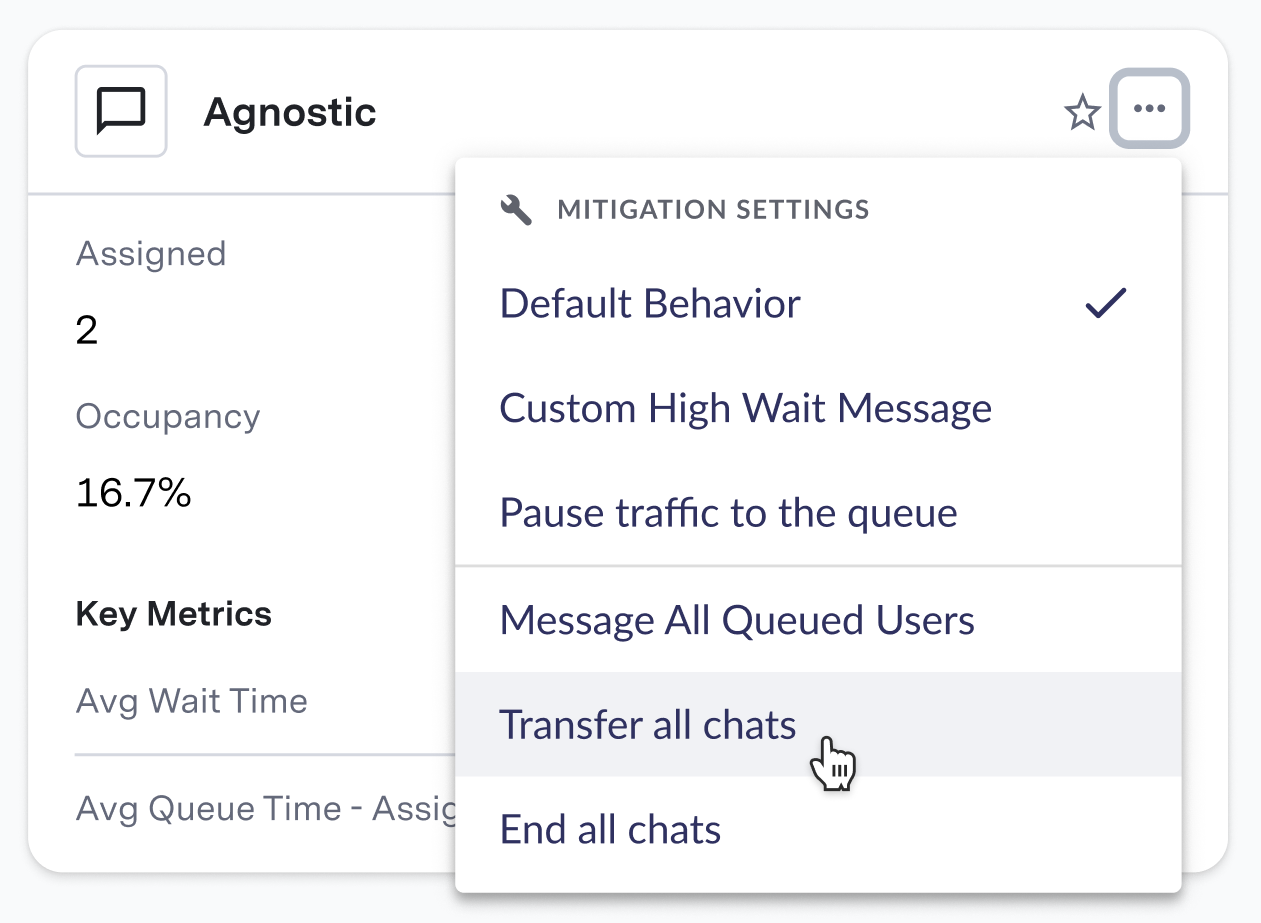
A user sees a dropdown list and selects the “Transfer all chats” item from the dropdown menu.
A queue selection modal appears to ask: “Select the queue which you want to transfer all chats to?” and they see a downdrop list of all the queue names and need to select a queue name and click transfer chats button.
A toast message appears informing the user that all chats have been transferred.
The end customer does not see a change on their side and assumes they are still waiting in a queue.
### Bulk Chat Closure
A user clicks on the 3 dots in the upper right hand corner of the queue card they want to impact.
The user sees a dropdown list and selects the “End all chats” item from the dropdown menu. A confirmation modal appears to ask: “Are you sure you want to end all chats in this queue?” and they need to select confirm/yes to complete the action of ending all chats.
A toast message appears informing the user that all chats are ended.
The end customer sees the normal “Conversation has ended” component.
## Data Access Control via SSO Groups
Users are assigned to groups based on their SSO/SAML credentials, which determines their data access across Live Insights, Conversation Manager, and User Management.
Organizations provide four attributes per user (BPO, Product, Role, Location) which ASAPP uses to construct group names and manage access:
* BPO users see only chats they service
* Workforce Management users see all chats, metrics and agents for their BPO
* Agents see only their own chats and data
* Managers see chats for their assigned teams
ASAPP maintains the group structure to enable filtering and queue association. All filters are defined by user SSO attributes.
## Live Insights Metrics
Two new monitoring features were added to Live Insights:
* Average First Response Time metric in queue cards tracks customer wait time for initial agent response
* SLA column in conversation tables shows if response times meet service level agreements
### Bulk Chat Transfer
A user sees a dropdown list and selects the “Transfer all chats” item from the dropdown menu.
A queue selection modal appears to ask: “Select the queue which you want to transfer all chats to?” and they see a downdrop list of all the queue names and need to select a queue name and click transfer chats button.
A toast message appears informing the user that all chats have been transferred.
The end customer does not see a change on their side and assumes they are still waiting in a queue.
### Bulk Chat Closure
A user clicks on the 3 dots in the upper right hand corner of the queue card they want to impact.
The user sees a dropdown list and selects the “End all chats” item from the dropdown menu. A confirmation modal appears to ask: “Are you sure you want to end all chats in this queue?” and they need to select confirm/yes to complete the action of ending all chats.
A toast message appears informing the user that all chats are ended.
The end customer sees the normal “Conversation has ended” component.
## Data Access Control via SSO Groups
Users are assigned to groups based on their SSO/SAML credentials, which determines their data access across Live Insights, Conversation Manager, and User Management.
Organizations provide four attributes per user (BPO, Product, Role, Location) which ASAPP uses to construct group names and manage access:
* BPO users see only chats they service
* Workforce Management users see all chats, metrics and agents for their BPO
* Agents see only their own chats and data
* Managers see chats for their assigned teams
ASAPP maintains the group structure to enable filtering and queue association. All filters are defined by user SSO attributes.
## Live Insights Metrics
Two new monitoring features were added to Live Insights:
* Average First Response Time metric in queue cards tracks customer wait time for initial agent response
* SLA column in conversation tables shows if response times meet service level agreements
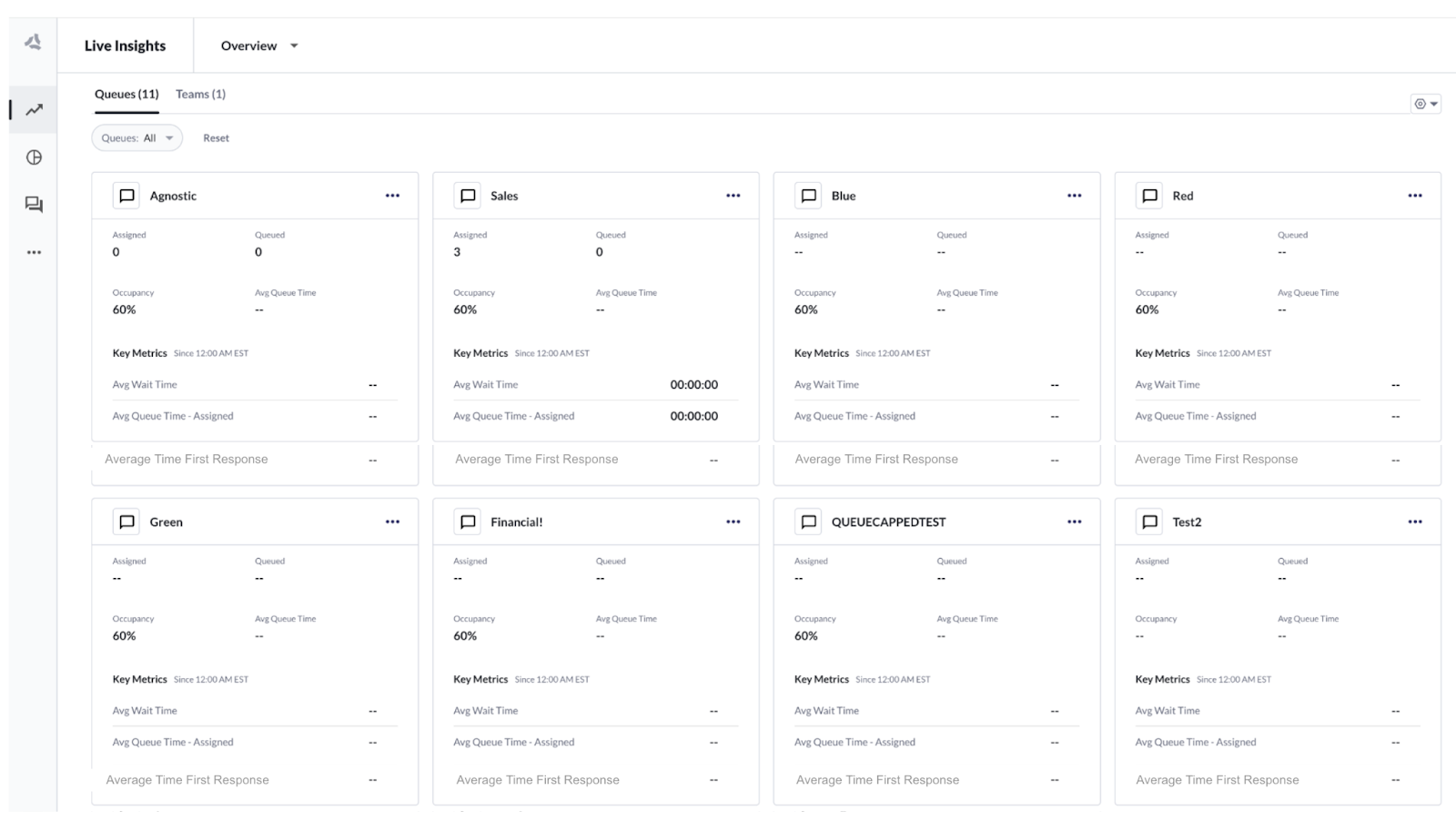 These additions help workforce managers monitor capacity and meet contractual SLA commitments.
## How it Works
Workforce management team monitors two key live metrics which are not present in ASAPP's Live Insights.
Some organizations require that the First Response time be within 2 minutes. In order to monitor whether they're meeting this SLA they have a metric named 'Average First Response Time' (definition: the average time consumers wait for the first human response in a conversation).
ASAPP will add a metric named 'Average First Response Time' to each queue card in Live Insights.
The metric is calculated as 'Average First Response Time'= queue wait time + agent time to first response
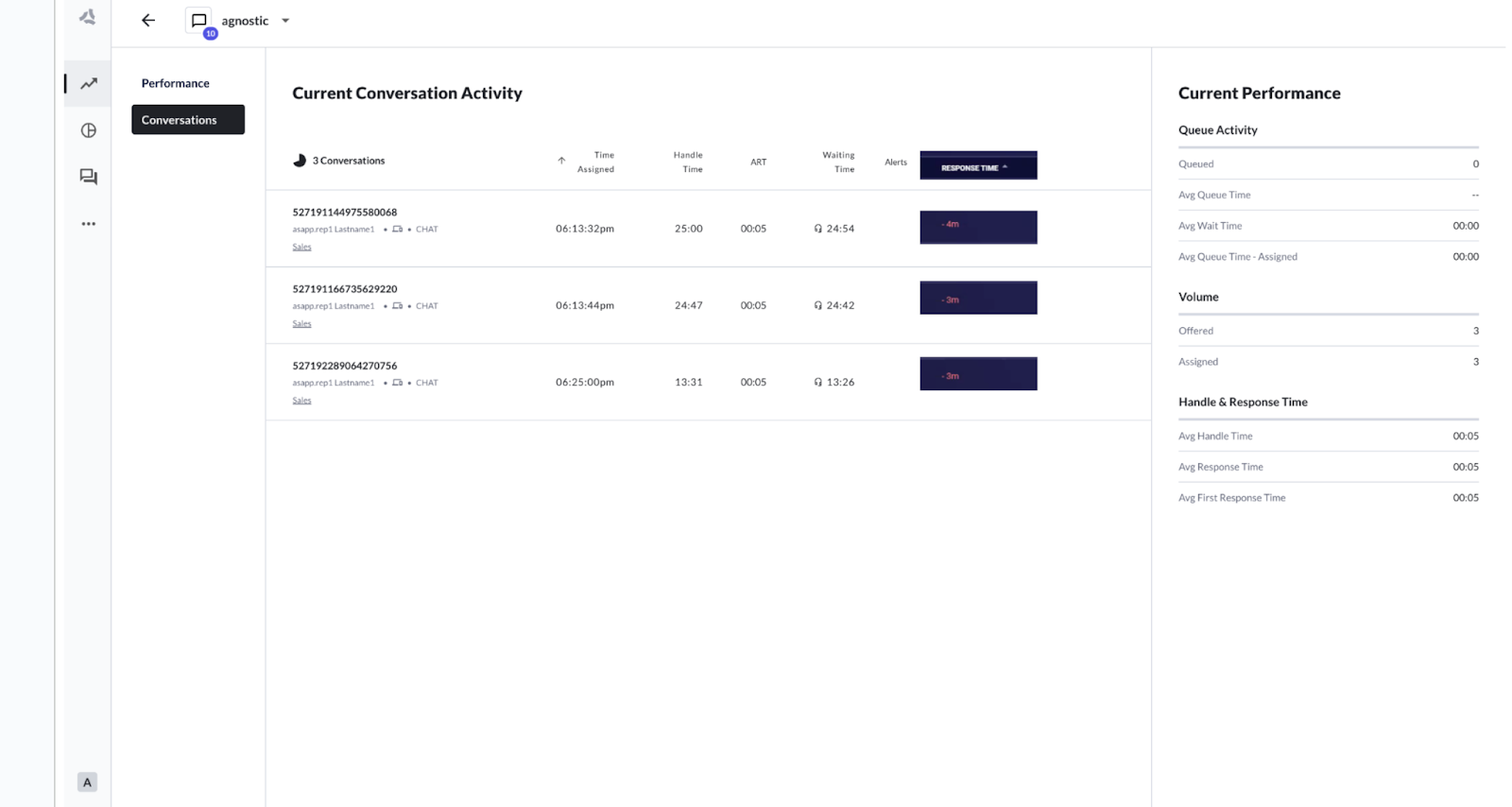
Organizations can monitor which chats have a response time longer than 2 minutes. ASAPP will add a response time column in the conversations tab within the queue card found in Live Insights. The calculation will be Response time= SLA (2 minutes)- response time.
These additions help workforce managers monitor capacity and meet contractual SLA commitments.
## How it Works
Workforce management team monitors two key live metrics which are not present in ASAPP's Live Insights.
Some organizations require that the First Response time be within 2 minutes. In order to monitor whether they're meeting this SLA they have a metric named 'Average First Response Time' (definition: the average time consumers wait for the first human response in a conversation).
ASAPP will add a metric named 'Average First Response Time' to each queue card in Live Insights.
The metric is calculated as 'Average First Response Time'= queue wait time + agent time to first response
Organizations can monitor which chats have a response time longer than 2 minutes. ASAPP will add a response time column in the conversations tab within the queue card found in Live Insights. The calculation will be Response time= SLA (2 minutes)- response time.
 ## Team and Location tables for Live Insights
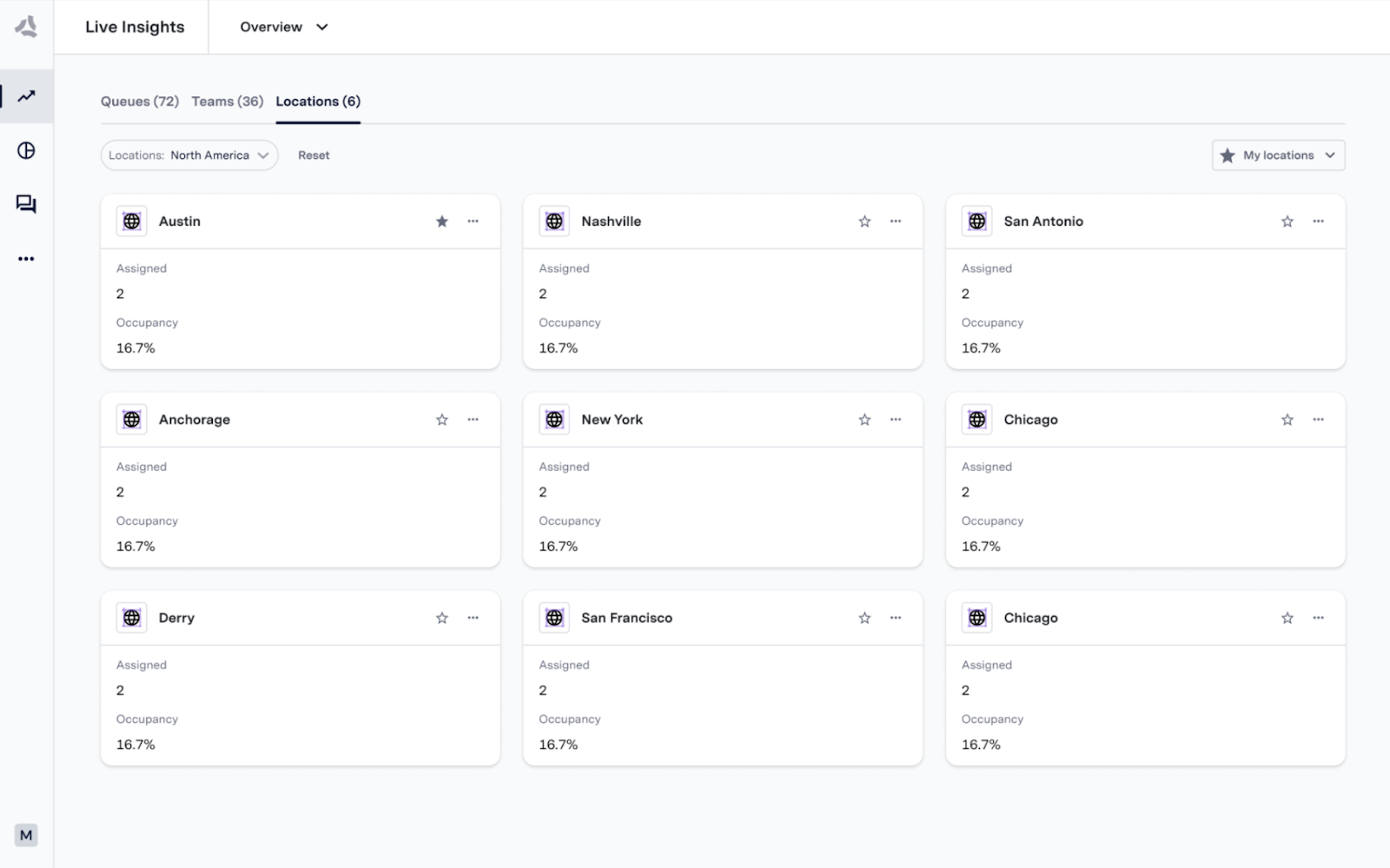
Live Insights now offers a Team and a Locations tab with filtering options that helps to oversee the management of teams and agents. Each tab shows the size and occupancy of each result.
Customers assign staff to their queues from various sites/BPOs, which complicates tracking the real-time performance of their agents for administrators. They lack visibility into agent behaviors, outages, and staffing levels across different geographic locations.
Additionally, supervisors are sometimes required to provide hourly updates on agent status (active, on lunch, etc.), necessitating an easy method for accessing this information. The additional teams and location tabs in insights manager make the administrators task of managing their teams across various locations easier and more efficient.
## Team and Location tables for Live Insights
Live Insights now offers a Team and a Locations tab with filtering options that helps to oversee the management of teams and agents. Each tab shows the size and occupancy of each result.
Customers assign staff to their queues from various sites/BPOs, which complicates tracking the real-time performance of their agents for administrators. They lack visibility into agent behaviors, outages, and staffing levels across different geographic locations.
Additionally, supervisors are sometimes required to provide hourly updates on agent status (active, on lunch, etc.), necessitating an easy method for accessing this information. The additional teams and location tabs in insights manager make the administrators task of managing their teams across various locations easier and more efficient.
 ## How It Works
Supervisors can track the following:
### Live Insights
* **Team Tab**
* **Locations Tab**
### Procedure
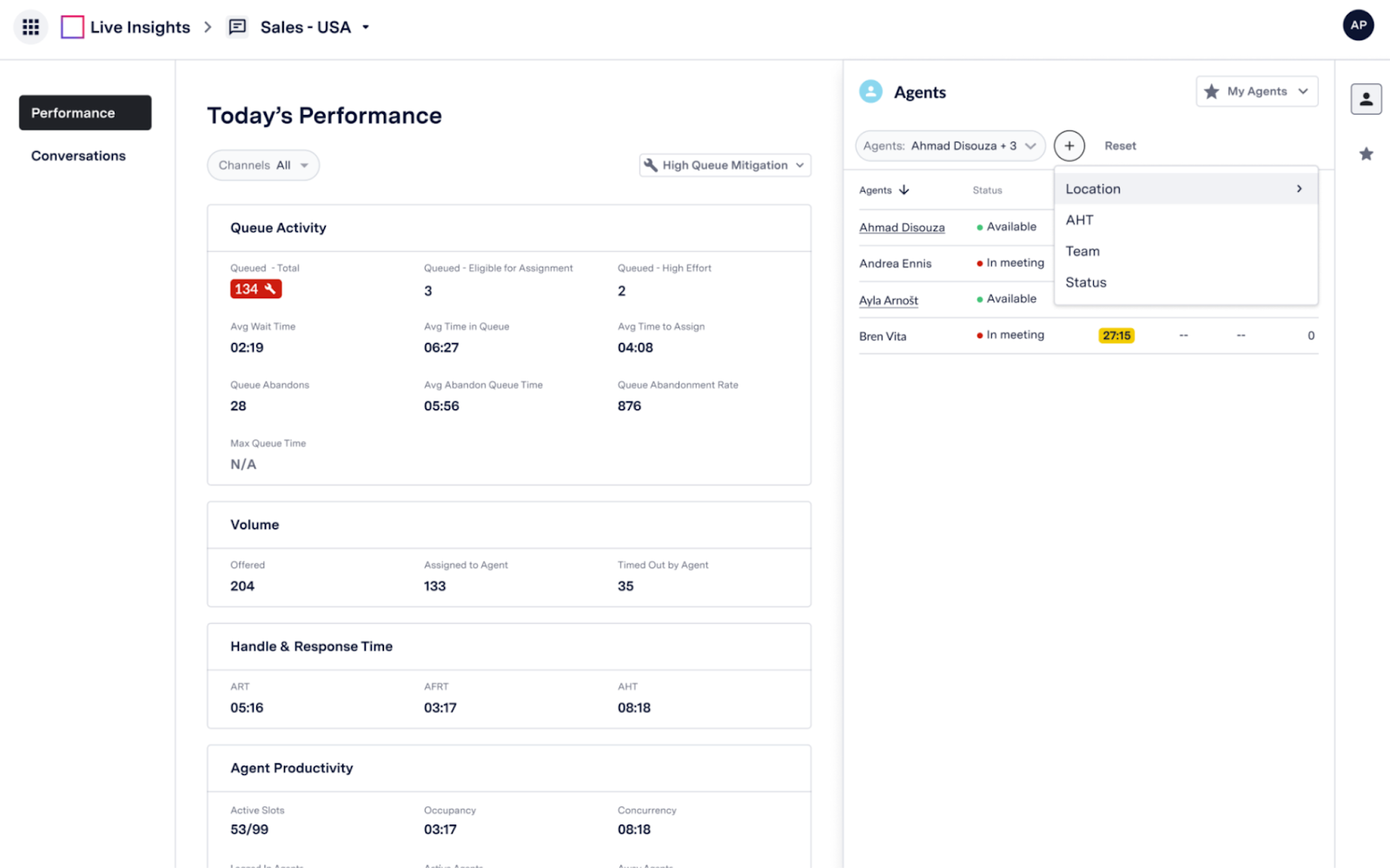
The administrator can see a list of agents after they have clicked into a particular queue, then selected Performance from the left-hand panel and clicked into the Agents icon on the right-hand panel.
They can further oversee results by performance metrics of the current day and filter both the agent list and metrics by any of the following attributes:
1. **Agent Name**
2. **Location**
3. **Team**
4. **Status**
## How It Works
Supervisors can track the following:
### Live Insights
* **Team Tab**
* **Locations Tab**
### Procedure
The administrator can see a list of agents after they have clicked into a particular queue, then selected Performance from the left-hand panel and clicked into the Agents icon on the right-hand panel.
They can further oversee results by performance metrics of the current day and filter both the agent list and metrics by any of the following attributes:
1. **Agent Name**
2. **Location**
3. **Team**
4. **Status**
 ### Management Capabilities
**Filtering by location**
Each location provides updates of performance and agents names.
**Filtering by site**
Each administrator can provide an hourly update of how many agents are active, on lunch, or in a different state as well as view corresponding metrics
### Feature Configuration
All information on which location and teams an agent belongs to is sourced through the SSO integration with ASAPP. Customers that require any changes to the data should change the respective attribute being passed to ASAPP.
Please contact your ASAPP representative for further information.
### Management Capabilities
**Filtering by location**
Each location provides updates of performance and agents names.
**Filtering by site**
Each administrator can provide an hourly update of how many agents are active, on lunch, or in a different state as well as view corresponding metrics
### Feature Configuration
All information on which location and teams an agent belongs to is sourced through the SSO integration with ASAPP. Customers that require any changes to the data should change the respective attribute being passed to ASAPP.
Please contact your ASAPP representative for further information.